Can ChatGPT read your website?
Let ChatGPT read your website
ChatGPT, Gemini, Claude, Perplexity and Copilot can only recommend what their crawlers are allowed to read. In about 30 minutes you can check the one file that decides this, and fix it if it locks them out.
· By the Letzscale team · 9 min read
On this page
- Time
- 30 minutes
- Difficulty
- Easy
- Who
- Whoever can edit your website
- You need
- A browser and access to your website settings
- Checked
- 13 October 2026
Part of the Letzscale guides: free, step-by-step fixes that help ChatGPT and other AI assistants find, understand and recommend your business. Not sure where you stand yet? Start with Guide 01: Check what ChatGPT says about your business.
Why it matters
Every website can have a small text file called robots.txt. It tells automated visitors, called crawlers, which pages they may read. If it turns away the crawler behind ChatGPT, ChatGPT cannot read your pages. It then relies on what other websites say about you, or says nothing at all.
Websites often block AI crawlers without anyone deciding to: a rule copied from a template, a setting left on after a redesign, or a security service that blocks bots by default. This guide finds out which one applies to you.
Before · crawler blocked
Open on Sundays until 18:00.
After · crawler allowed
No. Café Ribeiro is closed on Sundays. It opens Monday to Saturday. Correct
Illustration with a fictional business.
T2Got your Starter audit? This guide fixes T2, "AI crawler access", on page 07 (Technical and agent readiness). In a free Snapshot, it is linked from your top fixes on page 06.
Reference
Which crawlers to let in
Each AI assistant uses its own crawlers. Some fetch pages to answer people's questions. Others collect text to train future AI models. To be named in answers, the first kind must be allowed. Allowing the training crawlers is your choice.
| Assistant | Crawler names in robots.txt | What it does |
|---|---|---|
| ChatGPT | OAI-SearchBotChatGPT-UserGPTBottraining | Search answers in ChatGPT. Page visits when a user asks; OpenAI says robots.txt may not apply to these. Training data. |
| Gemini app | GooglebotGoogle-Extended | Google-Extended is not a crawler but a switch. It controls whether Google may use your content to train Gemini models and to ground answers in Gemini apps. It does not affect Google Search. |
| Google AI Overviews and AI Mode The AI summaries above Google results | Googlebot | The normal Google crawler. Google says there are no extra requirements: if you can appear in Google with a snippet, you can appear in AI Overviews. |
| Microsoft Copilot | Bingbot | Copilot looks things up through Bing, so Bing's crawler must be allowed. |
| Claude | Claude-SearchBotClaude-UserClaudeBottraining | Search index. Page visits when a user asks. Training data. |
| Perplexity | PerplexityBotPerplexity-User | Search results with links. Page visits when a user asks; Perplexity says it generally ignores robots.txt for these. |
| Siri and Apple | ApplebotApplebot-Extendedtraining | Applebot powers search in Siri, Spotlight and Safari. Applebot-Extended is a switch, not a crawler: it decides whether Apple may use what Applebot read to train its AI models. |
Our recommendation for most Luxembourg businesses
Allow everything. You want ChatGPT to know your services, prices, opening hours and contact details, and a blocked crawler only helps competitors whose websites can be read. If you object to AI training, block only GPTBot, ClaudeBot and Applebot-Extended: OpenAI, Anthropic and Apple keep those separate from their search crawlers. Do not block Google-Extended unless you accept being used less in Gemini answers.
Before you start
Have these ready
- Your exact website address, including whether it starts with
www. - A login to your website editor (WordPress, Webflow, Wix) or, for a custom-built website, your developer's contact.
- If your website runs through Cloudflare, a login to your Cloudflare account. Not sure? Your developer or IT provider will know.
Steps
Check and fix your robots.txt
Open your robots.txt file
In any browser, type your address followed by
/robots.txt, for exampleyourcompany.lu/robots.txt. You will see one of three things:- A few lines of text. Good, go to step 2.
- A "page not found" error. You have no file, which means every crawler is allowed. You can stop here, or create one in step 4 to add your sitemap.
- Any other error, or a login page. Send the address to your developer: crawlers may not be able to read the file at all.
letzscale.com/robots.txt · our own file, October 2026User-Agent: GPTBot User-Agent: OAI-SearchBot User-Agent: ChatGPT-User User-Agent: ClaudeBot User-Agent: Claude-User User-Agent: Claude-SearchBot User-Agent: PerplexityBot User-Agent: Perplexity-User User-Agent: Googlebot User-Agent: Google-Extended User-Agent: Bingbot User-Agent: Applebot User-Agent: Applebot-Extended Allow: / User-Agent: * Allow: / Host: https://letzscale.com Sitemap: https://letzscale.com/sitemap.xml
Our file names each AI crawler and allows it to read every page, then allows every other crawler too. The last line points crawlers to our sitemap, the list of our pages. The
Hostline is an old instruction that Google ignores, so you do not need it.Look for lines that block AI
The file is made of groups. Each group starts with
User-agent:and the crawler it applies to. A*means "every crawler not named elsewhere". Under it,Disallow: /means "nothing on this site", andAllow: /means "everything".A crawler obeys only the group that names it most specifically. So if a group names
OAI-SearchBotand saysDisallow: /, a generalAllow: /for everyone else does not help. Look for this pattern:Example of a file that blocks AI (lines in red)# Everyone may read the site... User-agent: * Allow: / # ...except these, which are locked out completely User-agent: GPTBot User-agent: OAI-SearchBot User-agent: ClaudeBot User-agent: PerplexityBot Disallow: /
In this example, ChatGPT search and Perplexity cannot read the website, so they are unlikely to cite it. Also check for
Disallow: /directly underUser-agent: *. That blocks everyone, including Google and Bing, and is a common leftover from a website that was built on a test server.Check the settings that change the file for you
On most platforms you do not edit the file directly; a setting writes it. Check the one that applies to you:
WordPress
Settings → Reading → Search engine visibility must be unticked. If you use an SEO plugin (Yoast, Rank Math), its tools section has a robots.txt editor.Webflow
Site settings → SEO → Indexing. Edit the rules, save, then publish the site. Webflow helpWix
Dashboard → SEO & GEO → Tools and settings → Robots.txt Editor → View File. Wix helpUsing Cloudflare?
Cloudflare is a service many websites use for speed and security. It can block AI crawlers at the door, even when robots.txt allows them. In your Cloudflare dashboard, open Security Settings, then Configure AI bot policies. Keep the Search category on "Allow". Since 15 September 2026, new Cloudflare domains block training and agent bots on pages with ads by default. Cloudflare docs
Write or update the file
If you edit the file yourself, this is the version we recommend. Replace the sitemap address with yours. Most website builders create the sitemap for you at
/sitemap.xml. Lines starting with#are comments. Remove the#from the training lines only if you want to opt out of AI training.robots.txt# Search engines and AI assistants may read every page User-agent: * Allow: / # Optional: opt out of AI model training only # User-agent: GPTBot # User-agent: ClaudeBot # User-agent: Applebot-Extended # Disallow: / Sitemap: https://www.yourcompany.lu/sitemap.xml
- Save it as plain text named exactly
robots.txt, never from Word, which can add characters that break it. - It must sit at the top of your website:
yourcompany.lu/robots.txt, not in a folder. - Each address needs its own file:
shop.yourcompany.luis separate fromyourcompany.lu.
- Save it as plain text named exactly
Check it worked
Confirm what crawlers now see
Open yourcompany.lu/robots.txt again in a private browser window, so you see the live version and not a saved copy. Then confirm with the search engines themselves:
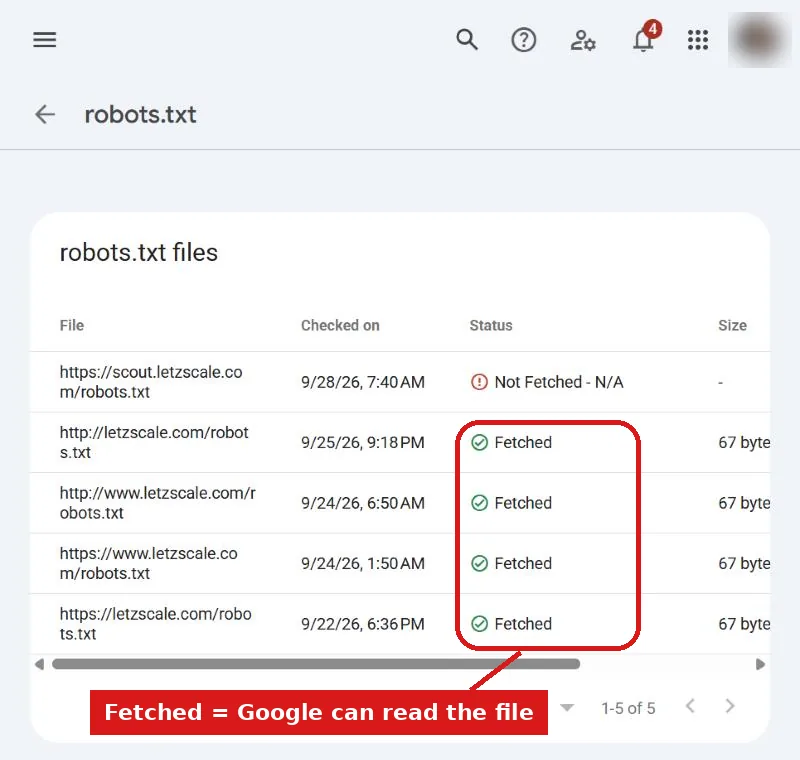
- Google Search Console → Settings → robots.txt shows the version Google last fetched and any problems it found. No Search Console yet? Guide 03 sets it up.
- Bing Webmaster Tools has a robots.txt tester that shows whether a page is allowed for Bingbot, which Copilot depends on.
Give it a day. OpenAI says its search systems can take about 24 hours to pick up a change; other crawlers follow their own schedule.
Done when
- Your robots.txt opens in a browser and shows plain text.
- No group says
Disallow: /for*,Googlebot,Bingbot,OAI-SearchBot,Claude-SearchBot,PerplexityBotorApplebot. - The last line points to your sitemap.
- If you use Cloudflare, the Search category is set to "Allow".
Common mistakes
What usually goes wrong
- A test-site block that went live.
Disallow: /underUser-agent: *keeps everyone out, Google included. - Fixing the wrong address. The website runs on
www.yourcompany.lubut the file was changed onyourcompany.lu, or the other way round. - Blocking Google-Extended to protect your Google rankings. It has no effect on Google Search. It only controls how Google uses your content for Gemini.
- Treating robots.txt as a lock. It is a public request: well-behaved crawlers follow it, others do not. Never use it to hide private pages.
- Forgetting the firewall. A security service can block a crawler that robots.txt allows. If the file looks right and ChatGPT still cannot read you, check Cloudflare or ask your host.
Sources, checked 13 October 2026
- OpenAI: Overview of OpenAI crawlers
- Anthropic: Does Anthropic crawl data from the web?
- Perplexity: Perplexity crawlers
- Apple: About Applebot
- Google: AI features and your website
- Google: Common crawlers (Google-Extended)
- Google: How to write and submit a robots.txt file
- Cloudflare: Block AI bots
- Webflow: Set robots.txt rules · Wix: Editing your site's robots.txt file