Can ChatGPT read your website?
Pages Google will not store: noindex and canonical mistakes
A forgotten noindex tag or a canonical tag pointing to the wrong page can keep your key pages out of Google without visitors noticing anything. This guide shows how to find both mistakes in Search Console and in the page code, fix them and ask Google to index the page again.
· By the Letzscale team · 9 min read
On this page
- Time
- 30 minutes
- Difficulty
- Medium
- Who
- Your developer, or whoever manages your website
- You need
- Access to Google Search Console for your website, a browser, and access to your website editor or code
- Checked
- 24 October 2026
Part of the Letzscale guides: free, step-by-step fixes that help ChatGPT and other AI assistants find, understand and recommend your business. Not sure where you stand yet? Start with Guide 01: Check what ChatGPT says about your business.
Why it matters
A page that Google has not stored, or "indexed", cannot appear in Google results, and Google says a page must be indexed to appear in AI Overviews and AI Mode. Guide 03 explains why this matters for AI assistants and how to connect your website to Google Search Console.
This guide is about two small instructions in a page's code that quietly keep pages out of Google, even when the page looks perfect to visitors:
- noindex tells search engines: "do not store this page". Google then drops the page from its results, even if other websites link to it.
- canonical tells search engines: "this page is a copy, the main version is over there". If it points to the wrong page, Google may store the other page instead of yours.
Both are useful when set on purpose. Both are often set by accident: a setting left on after a redesign, an SEO plugin default, or a page template copied from somewhere else.
<head>
  <title>Payroll services in Luxembourg | Fiduciaire Veldrin</title>
  <meta name="robots" content="noindex">
  <link rel="canonical" href="https://www.veldrin.example/">
</head>
Illustration with a fictional business.
Reference
Two instructions, two different jobs
| noindex | canonical | |
|---|---|---|
| What it says | Do not show this page in search results. | This page is a duplicate; prefer this other address. |
| How Google treats it | A rule. Google drops the page from its results. | A hint. Google says it takes it into account but may choose a different page. |
| Where it lives | A <meta name="robots"> tag in the page's <head>, or an X-Robots-Tag line sent by the server | A <link rel="canonical"> tag in the <head>, or a Link line sent by the server |
| Fine for | Thank-you pages, internal search results, test pages | Real duplicates, for example the same page reachable at two addresses |
| Harmful on | Your home page, service pages, prices, contact | Pages with their own content that point to a different page |
Do not mix up noindex and robots.txt
robots.txt (see Guide 02) asks crawlers not to visit a page. noindex asks search engines not to store it. Google says that if robots.txt blocks a page, its crawler never sees the noindex, so the page can still end up in results. To keep a page out of Google, allow it in robots.txt and use noindex. To get a page into Google, remove both blocks.
Before you start
Have these ready
- Access to Google Search Console for your website. No access yet? Guide 03 sets it up in about an hour.
- A list of your 5 to 10 most important pages: home, each main service, prices, booking, contact.
- A login to your website editor (WordPress, Webflow, Wix) or your developer's contact.
Steps
Find and fix the pages Google will not store
See which pages are affected
In Search Console, open the Page indexing report. Under the chart, the table Why pages aren't indexed lists each reason with a number of pages. Click a reason to see the pages behind it. Google help
Many pages are not indexed for good reasons, and Google says that is normal. Look for your key pages under these reasons:
Reason shown What Google means What to do URL marked ‘noindex’ Google found a noindex instruction and did not index the page. If it is a key page, remove the noindex (step 4). Alternate page with proper canonical tag The page points to another page as its main version, and that page is indexed. Nothing, if the page really is a copy. If it has its own content, fix its canonical (step 5). Duplicate without user-selected canonical Google sees the page as a duplicate of another and picked the other one. Inspect the page to see which one Google picked. If Google is wrong, declare a canonical, or make the two pages clearly different. Duplicate, Google chose different canonical than user Your page names a main version, but Google picked another page. Compare the pages (step 2). Google says it never chooses a canonical that is not similar to the page. Indexed, though blocked by robots.txt A warning: the page is in Google, but Google could not read it. If you want it out of Google, remove the robots.txt block and use noindex. If not, unblock it (Guide 02). Other reasons, such as "Crawled - currently not indexed" or "Not found (404)", are explained in Guide 03.
Inspect one key page
Paste the full address of a key page into the search bar at the top of Search Console. This opens the URL Inspection tool. Expand the Page indexing section. Three lines tell you what you need: Google help
Field in URL Inspection Example: veldrin.example/payroll What it tells you Crawl allowed? Yes robots.txt lets Google visit the page. If it says No, Google cannot see a noindex either. Indexing allowed? No, with the reason shown next to it The page asks not to be stored. If this is a key page, that is your problem. User-declared canonical https://www.veldrin.example/ The main version your page names. "None" is fine for a page that is not a copy. Google-selected canonical https://www.veldrin.example/ The page Google treats as the main version. For a page without copies, Google says this is the page itself. Here Google followed the hint and treats the payroll page as a copy of the home page. What these fields could show for a payroll page with both mistakes. Values are illustrative; the wording in your account may differ slightly. Illustration with a fictional business.
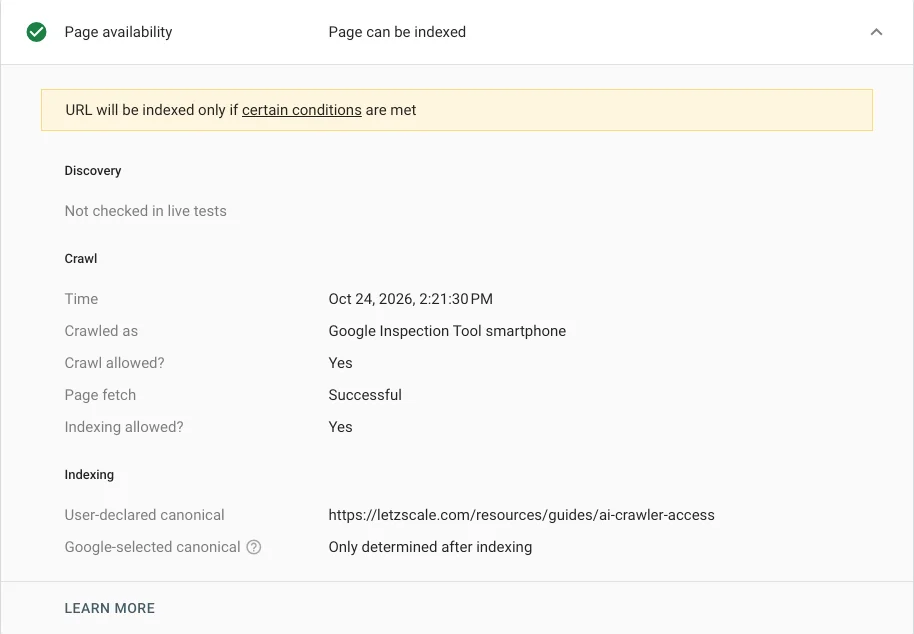
A live test of one of our own guides, 24 October 2026. Google reads the canonical we declared, the page's own address. As Google notes, which canonical it selects is only known once the page is indexed. Two notes from Google. If robots.txt blocks the page, Indexing allowed? always says "Yes", because Google cannot see the noindex. And the canonical lines come from the indexed version of the page: the live test cannot tell you which canonical Google will choose.
Look in the page code yourself
Developer step
Search Console shows what Google saw at its last visit. Check what the page sends today. In Chrome, open the page, right-click and choose View page source, then search (Ctrl+F or Cmd+F) for:
noindex: if you find it in a<meta name="robots">or<meta name="googlebot">tag on a key page, it must go.canonical: there should be at most one, inside the<head>, with a full address that starts withhttps://.
noindex can also be sent by the server instead of the page, as an
X-Robots-Tagheader. Google suggests searching the page source or the response headers for the word "noindex". From a Terminal:Show the headers your server sends for a pagecurl -sI https://www.yourcompany.lu/services/ | grep -i -E "x-robots-tag|link:"
No output means no noindex and no canonical in the headers. A line such as
X-Robots-Tag: noindexmeans the server, a hosting setting or a security layer is blocking indexing for that page.If your website builds pages with JavaScript, check the original code, not only what you see in the browser's inspector. Google says that when it finds noindex in the original code it may skip running JavaScript, so removing noindex with JavaScript may not work. More in Guide 12.
Remove a noindex you did not want
Google notes that on platforms such as WordPress or Wix you usually do not edit the code: a search engine setting writes the tag for you. Check the places where it hides:
Whole website (WordPress)
Settings → Reading → Search engine visibility. If Discourage search engines from indexing this site is ticked, WordPress adds noindex to every page. Untick it and click Save Changes. WordPress docsOne page (Yoast SEO)
Open the page in the editor, then the Yoast SEO sidebar or box → Advanced. Under Allow search engines to show this content in search results, choose Yes. Yoast also has a switch per content type in its Settings. Yoast helpServer or hosting
If step 3 found anX-Robots-Tagheader, the page code is not the cause. Ask your developer or host to remove the header from the server or proxy settings.Built on a test site?
Many websites are built on a test copy with "hide from search engines" switched on, which is correct while it is a test. If that setting travels to the live website at launch, every page carries noindex. Check the setting the day a new website or redesign goes live.
Remember the robots.txt rule: if robots.txt blocks the page, Google cannot see your change. Leave the page open to crawlers.
Fix canonical tags that point to the wrong page
A canonical should point to the page itself, unless the page really is a copy of another. Google recommends that each main page carries a canonical to itself. These are the mistakes Google describes, and what to do:
Mistake Why it hurts Fix Every page points to the home page, often from a template or plugin default A canonical tells Google which page to show instead. Google says the main version should contain most of the copy's content; a service page and the home page do not match. Make each page point to its own address. The canonical uses http://, or the other version of your domain (with or withoutwww.)Your redirects and your canonical then name different addresses. Google asks for consistent signals and prefers HTTPS. Use the exact address your website redirects to, for example https://www.yourcompany.lu/services/.The canonical points to a page that is missing or noindexed Google says the target must exist (not a 404 error) and must not carry noindex. Point to a live page, or to the page itself. Two or more canonical tags, often one from the theme and one from an SEO plugin Google says it will then likely ignore all of them. Keep one. Check the whole <head>, as the tags can be far apart.A short address such as /services/, or a tag outside the<head>Google asks for full addresses, and only reads the tag inside the <head>.Write the full address, in the <head>.A correct canonical on a service page<link rel="canonical" href="https://www.yourcompany.lu/services/payroll/">
In most website builders and SEO plugins the canonical is set automatically. If yours is wrong on many pages at once, the cause is usually a theme, template or plugin setting, not each page. Google suggests reporting it to your CMS provider if you cannot fix it yourself.
Language versions are not duplicates for Google when the main text is translated. Your French page should not point to your English page.
Ask Google to look again
Back in URL Inspection, click Test live URL. If Indexing allowed? now says Yes, click Request indexing. There is a daily limit, so keep requests for your key pages. Google help
Once all pages under a reason are fixed, open that reason in the Page indexing report and click Validate fix. Google checks a few pages first, then the rest. Google says this usually takes up to about two weeks, sometimes longer, and sends you an email with the result.
A canonical change takes longer to show. Google says it can keep pages grouped as duplicates for up to two weeks before it looks at them again.
Check it worked
Confirm Google can store your key pages
Come back after one to two weeks and inspect each key page again. The status at the top should say URL is on Google. Google adds that this means the page is eligible to appear, not that it is guaranteed to.
Done when
- None of your key pages appears under "URL marked ‘noindex’" in the Page indexing report.
- URL Inspection shows Indexing allowed? Yes for each key page.
- For each key page, Google-selected canonical is the page itself, or the version you chose on purpose.
- Each page's source has at most one canonical, with a full
https://address on the domain version you actually use. - The search engine setting in your website editor is off, and no
X-Robots-Tag: noindexheader is sent for key pages.
Common mistakes
What usually goes wrong
- Blocking a page in robots.txt and adding noindex. Google never sees the noindex, so the page can still appear, with little or no description.
- Using a canonical to hide a page. A canonical is a hint about duplicates. To keep a page out of Google, use noindex. Google also advises against noindex to pick the main version among your own duplicates: use a canonical for that.
- Copying a page template with its canonical. The new page then names the old page, or even another website, as its main version.
- Expecting the fix to show the next day. Google has to visit the page again first. For a page it rarely visits, Google says this may take months without a request.
- Treating every "not indexed" page as a problem. Real duplicates and thank-you pages are meant to stay out. Focus on the pages people should find.
Sources, checked 24 October 2026
- Google: Block Search indexing with noindex
- Google: How to specify a canonical with rel="canonical" and other methods
- Google: What is URL canonicalization · Fix canonicalization issues
- Google Search Central Blog: 5 common mistakes with rel=canonical
- Search Console Help: Page indexing report
- Search Console Help: URL Inspection tool
- Google: AI features and your website
- Google: Understand JavaScript SEO basics
- WordPress: Settings Reading screen · Yoast: How to noindex URLs